

Executive summary
“One line of code” usually means a short snippet. That’s a small block of text, sometimes called an embed code, that you paste once into your website. It turns on a new feature without changing anything else on your site.
You’ve likely added something like this before without realizing it. Installing website analytics, a live chat bubble, a tracking pixel, or an embedded map all work the same way.
This piece explains what that one line actually is, where it goes, why it’s safe, and whether you can remove it later. By the end, “one line of code” won’t sound like developer talk anymore.
Introduction
If you’ve ever read a product page that says “just one line of code” and wondered what that actually means, you’re not alone. It sounds like something only a developer could handle.
Most of the time, it isn’t. Adding a modern website tool, like a chat widget, a booking calendar, or a tool such as ChatSKU, usually means pasting one short snippet once.
The phrase gets used so often that it’s easy to assume it’s marketing shorthand for something more complicated. It generally isn’t. A line of code, in this context, really is just a small piece of text you paste into your site.
This matters because plenty of owners avoid trying a new tool simply because the setup sounds technical. Understanding what the phrase actually means removes that barrier, whether or not you ever install anything.
Why do people assume adding a tool means a big project?
The fear usually comes from past experience, not from anything most modern tools actually require. If you’ve ever rolled out a new ERP system or rebuilt a website with an agency, you know how those projects go.
Weeks of planning. A developer on retainer. Testing before anything goes live.
That pattern is real. It just doesn’t apply to most snippet-based tools.
A tool like this isn’t a system that replaces your website, your ERP, or your existing software. It sits on top of what you already have.
Owners picture a big project because “add this to your site” sounds like a platform change. It usually isn’t. Adding a new tool this way is closer to adding an accessory than swapping one system for another.
Nothing about your website, your product data, or your existing software gets replaced or migrated in the process.
What does "one line of code" actually mean?
A “line of code” here just means a short block of text. It’s sometimes called a snippet or an embed code, and you paste it once into your website. That’s the whole definition, nothing more technical than that.
The clearest example is website analytics. If you’ve ever added a tracking snippet to measure site visits, you’ve already done exactly this kind of install.
The same pattern shows up in a chat bubble you’ve probably noticed on other companies’ websites. Those bubbles run on one snippet, pasted once, and the bubble appears on every page after that.
This pattern shows up far beyond analytics and chat. Appointment booking calendars, customer review badges, and even some payment buttons all install the same way. Paste once, and a new feature appears.
You’ve likely felt something similar embedding a YouTube video or a Google Map on a page. It’s not the exact same mechanism underneath. But the experience is identical: paste once, something appears, and the rest of your site stays untouched.
Here’s why it works without slowing anything down. You’re not replacing a page or moving your data anywhere. You’re adding one small instruction that tells the browser to also load a separate, small piece of software.
That’s the same way a tracking tag or a review widget loads on its own, without holding up the rest of your page.
If you want proof this isn’t exaggerated, the actual line of code usually looks like a short web address with a few extra characters attached. It’s not a document, a plugin, or a program. It’s just text, the same as a sentence in an email.
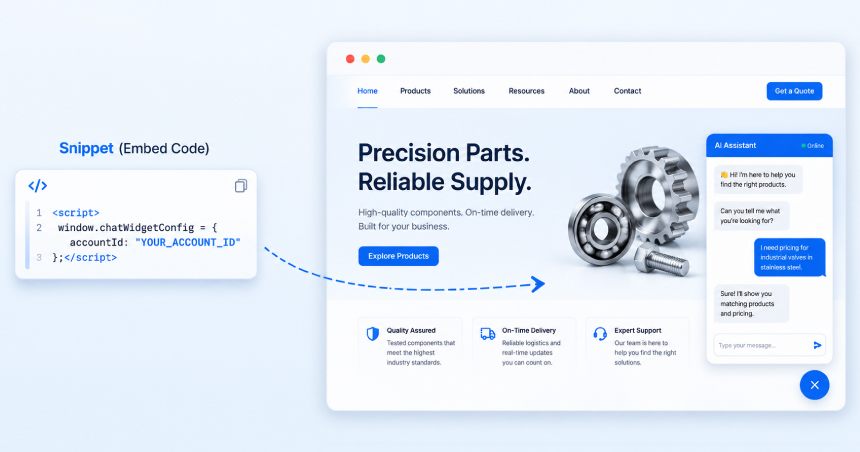
Where does that one line of code actually go on a website?
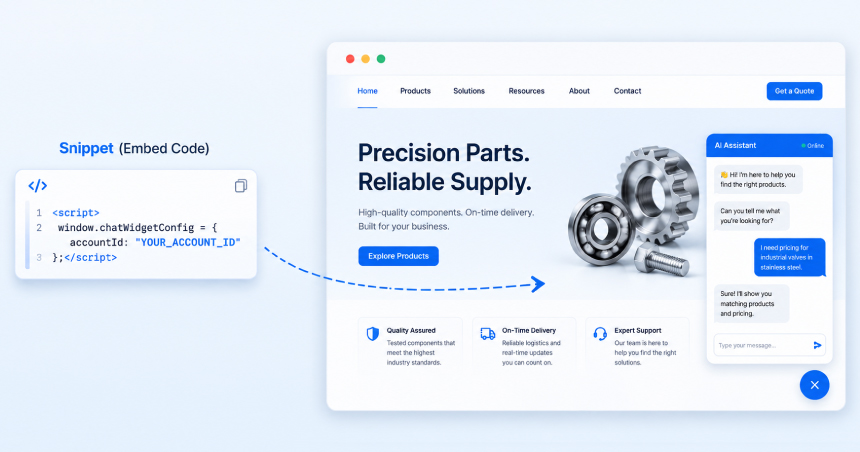 It goes in one spot on your website, and once it’s there, it shows up on every page automatically.
Most website platforms already have a place built for this. Many call it a header or footer field, since code placed there loads before or after the rest of the page.
If your site uses a page builder, or a developer manages your theme, they’ll know the exact spot right away. It’s the same place they’d add an analytics tag or a chat tool.
You don’t touch your existing pages, product listings, or site design to add this. The snippet goes in once, and it works on every page your site already has.
You also don’t need a separate version for mobile or desktop. The same snippet works across both, since it’s tied to your website, not a specific device or browser.
Not sure where that spot is on your own site? That’s a normal question, not a sign something’s wrong. Most tools walk you through exactly where to look during setup.
Does it matter which platform your site runs on?
Not usually. Most website platforms, including WordPress, Shopify, Wix, Squarespace, and Webflow, all have a simple way to add this kind of snippet.
Each platform just calls the spot something slightly different. WordPress often has a header and footer field, or a small plugin for exactly this purpose. Shopify and Wix usually call it a custom code or embed section inside theme settings.
Some platforms take this a step further with a plugin or app version of the same idea. Instead of you pasting text, installing the plugin adds the snippet for you automatically. Either way, the result is the same one small addition to your site.
If your site is custom-built, whoever manages the code can add it just as easily. A script tag, a small piece of code placed directly on a page, works the same way there too.
This holds true whether your site launched five years ago or went live last month. The install pattern hasn’t changed much, because it’s built to work the same way everywhere.
Will adding a snippet slow down your site or break anything?
No, not in any way that matters for most tools built this way. A snippet like this loads separately from the rest of your page, and it doesn’t rewrite or touch your site’s existing code.
The technical reason is simple. Your browser loads the new snippet in the background while your page keeps loading at the same time. Neither one holds up the other, the same way an analytics tag or a chat bubble works.
This is why many businesses run several of these tools at once. Think analytics plus a chat bubble plus a review widget, all without any noticeable slowdown.
There’s no single speed number that applies to every tool built this way, and a fair answer should admit that. What’s true instead is that this entire category of snippet, tracking tags, chat widgets, embeds, has always been built to run in the background.
As for breaking your site, the same logic applies. A well-built snippet adds one small feature, nothing more. It doesn’t rewrite your homepage, your product pages, or your checkout flow.
Can you remove a snippet later if you change your mind?
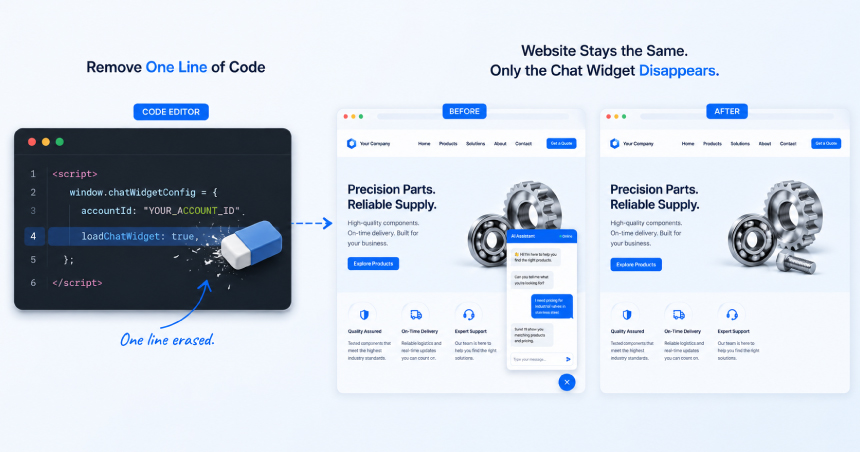
Yes. Removing a one-line snippet takes that tool off your site, and nothing else about your website changes.
Because the snippet never touched your pages, your data, or your design, removing it is just as simple as adding it was. Whoever manages your site deletes the same line, and the feature stops appearing.
Most platforms also let you pause a tool temporarily, without removing the snippet outright, if you just want to turn something off for a while.
This matters more than it might seem. Plenty of owners hesitate on new tools because they picture being locked in, with data scattered across a system they can’t easily leave.
Your existing data stays yours. Your website stays exactly as it was before you added anything. Trying a new tool this way doesn’t commit you to anything permanent.
How this works for an AI catalog assistant like ChatSKU
For an AI catalog assistant like ChatSKU, the one-line install is the last of three steps. First you upload your catalog, then you review the configuration, and finally you paste the line.
Step one is uploading your catalog, whatever form it’s in today: PDF, Excel, or an ERP export. You can see the catalog integration options if you want details on what formats work.
Step two is configuration. You review what the assistant will say, how it handles your pricing tiers, and how requests get routed to your team. If quotes are part of your sales process, this is also where RFQ automation gets set up.
Step three is the snippet itself, the part covered in the rest of this piece. You paste one short line into your site, and the assistant goes live.
Most teams finish all three steps within a day, mostly because the catalog upload and review take the bulk of that time. The paste itself takes minutes, not hours.
If your business loses buyers who browse after hours and never come back, the after-hours buyer problem is worth a read next. It explains why a fast setup like this one actually matters, beyond the code itself.
For the fuller picture of what an assistant like this actually does once it’s live, the B2B catalog chatbot guide is a good next stop.
People also ask
Do you need to know how to code to add a snippet like this?
No. You don’t need to know how to code, only how to copy and paste one line of text. If you’re not comfortable doing it yourself, anyone who manages your website can handle it in minutes.
Does this work if your site was built by an agency?
Yes. This kind of install works whether an agency, a freelancer, or your own team built your website. Whoever manages your site’s code or theme settings today can add the line the same way they’d add any other tracking or chat tool.
What file or page does the code go on?
It goes in one place, usually a header or footer setting your website platform already provides. From there, it shows up automatically across every page, so you never add it page by page.
How is this different from installing a plugin?
A plugin usually lives inside your website’s back end and needs updates over time. A snippet like this sits outside your site’s core files entirely, so there’s nothing installed to maintain or update later.
Conclusion
You now know what “one line of code” actually means, whether or not you ever add one to your own site. It’s a short snippet, pasted once, that turns on a new feature without touching the rest of your page.
That’s the whole barrier most owners imagine before they look into a new tool. It turns out to be the easiest part of the decision. Upload what the tool needs, review the setup, paste the line, and it’s live.
If you’re curious how this looks for an AI catalog assistant, ChatSKU works exactly this way. Upload your catalog, review it, paste one line, and you’re live the same day.
If you’re ready to see it for yourself, start a free trial or book a demo. Either way, the hardest part of adding a tool like this was never the code.
Frequently asked questions
No, you don’t need a developer. If you can paste a line of code into your site, similar to adding a basic analytics tag, you can handle this yourself. That’s the whole technical bar for most snippet-based tools.
This isn’t a quirk specific to one product. It’s the same bar as installing analytics or any other on-site tool.
Most teams finish in well under a day once their setup content, like a product list or a catalog, is ready to go. The code paste itself takes minutes once you reach that step.
No meaningful slowdown is expected. A snippet like this loads in the background, separate from the rest of your page, so it doesn’t compete for loading time. It works the same quiet way an analytics tag or a chat bubble does.
There’s no single speed number that covers every tool built this way, but this category of script has always been designed to run this way.
No, you don’t have to rebuild anything. A tool like this works on top of your existing site exactly as it is today. Nothing about your current pages, design, or content needs to change.
No. Adding a snippet like this doesn’t touch your website’s design, layout, or existing pages. The new feature appears as an addition to your site, without altering anything already there.
Not usually. All of these, along with Squarespace, Webflow, or a custom-built site, support this kind of install. If your platform lets you add a script tag, a small piece of code placed on a page, the tool works there.
Yes. If they can add a script tag to your site, they can add an AI catalog assistant like ChatSKU. No specialized training or certification is required.
If you don’t have anyone in-house yet, start a free trial and paste the line yourself in minutes.
It’s safe by design, for the same reason a chat bubble or an analytics tag is safe. The snippet only adds one feature, and it doesn’t touch your site’s existing pages or underlying code.
That’s not a certification or a guarantee. It’s simply how this type of install behaves, based on the same logic that applies to any snippet-based tool.
For anything specific to ChatSKU’s setup, pricing, or catalog handling, our full FAQ page has the details.
Turn your catalog into a 24/7 sales channel
Stop sending PDFs. Start capturing demand.
Try ChatSKU Free →
About the author
Gigi JK is the founder of ChatSKU and Virtina, bringing more than 28 years of experience across digital transformation, eCommerce strategy, AI-driven growth systems, and business modernization. His work spans startups, scale-ups, and SMBs, with a focus on turning complex operational problems into practical growth frameworks. Before ChatSKU, Gigi built and scaled a seven-figure eCommerce business and led Virtina as an eCommerce engineering and business transformation consultancy. At ChatSKU, he focuses on helping B2B manufacturers, distributors, and wholesalers make complex catalogs searchable, quote-ready, and agent-ready without forcing a full platform rebuild.